
Running a scan
A "scan" is one full pass of every prompt against every AI engine. Scans are how Scout collects fresh data — your Visibility Score, sentiment, citations and competitor stats all come from the most recent scan.
How to start a scan
-
Open the dashboard
Go to Dashboard → Overview. The big Run Scan button lives in the top-right.
-
Click Run Scan
Scout immediately spawns a background job and shows the live progress page. You can leave the tab — the scan runs server-side and your dashboard will update when it's done.
-
Wait 1–3 minutes
Scan time depends on how many prompts you have. With the free plan (5 prompts) it takes ~30 seconds. With 350 prompts on Premium, expect 4–5 minutes.
What happens during a scan
For every prompt in your list, Scout runs the following pipeline:
- Fire the prompt at ChatGPT (
gpt-4o) and capture the full answer. - Fire the same prompt at Gemini (
gemini-2.5-flash). - Fire the same prompt at Perplexity (
sonar) — this one also returns cited URLs. - For each of the three answers, send it through the analysis pass (
gpt-4o-mini, JSON output) to extract: brand mentioned? recommended? sentiment? position? which competitors appeared? - Store everything in your scan history.
- Recompute the Visibility Score and update every chart.
Different AI engines train on different data and weight different sources. ChatGPT might love you while Gemini barely knows you exist. Scanning all three gives you the only honest cross-section of "AI search" as it exists today.
The progress page
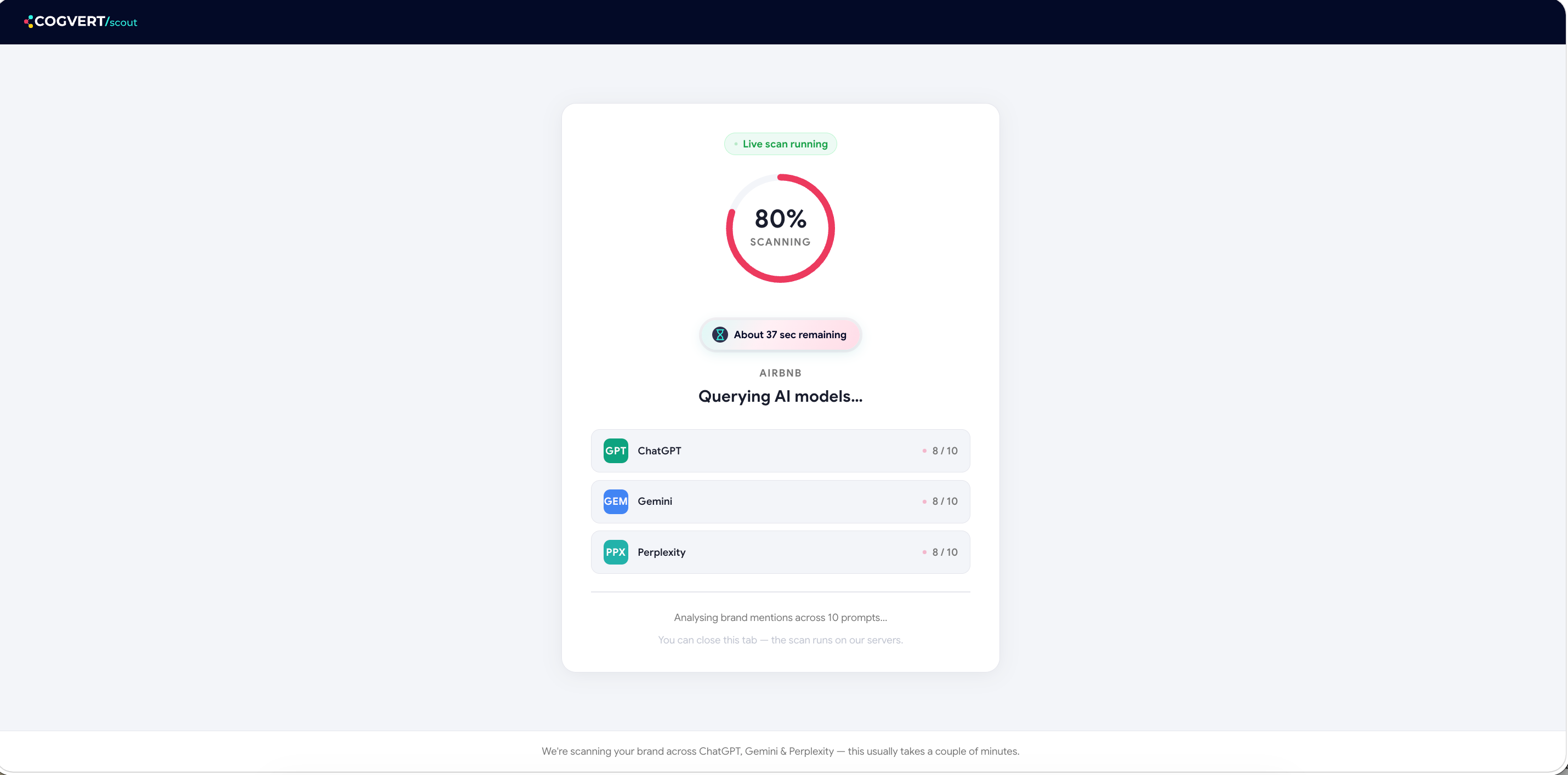
While a scan is running, Scout shows a live progress view with:
- A progress bar (X of Y prompts complete).
- The current prompt being processed.
- Per-model status (✓ done, ⟳ running, ⊘ failed).
- An estimated time remaining.
If a scan gets stuck
Shared-hosting PHP timeouts can occasionally leave a scan in "running" state. Scout protects against this in two ways:
- Every scan is wrapped in a try/catch — failures are caught and the scan is marked failed (not stuck).
- Scans that run longer than 15 minutes are auto-expired by the cron job, freeing the queue for the next run.
If you see a "scan already running" warning that doesn't go away, wait 15 minutes and try again — by then the auto-expire will have unblocked you. Persistent issues should be reported to [email protected].
How often to scan
| Cadence | When to use it |
|---|---|
| Daily | Launch week, big PR moment, or active competitor monitoring. |
| Weekly | The default. Best signal-to-noise for most teams. |
| Monthly | Maintenance mode — established brands tracking long-term trends. |
Scout includes an automatic daily scan cron on Growth and Premium plans, so you don't have to remember to click anything. The cron runs at 03:00 your account's time zone.
Was this page helpful?
Thanks for the feedback — we read every response.