
Add competitors
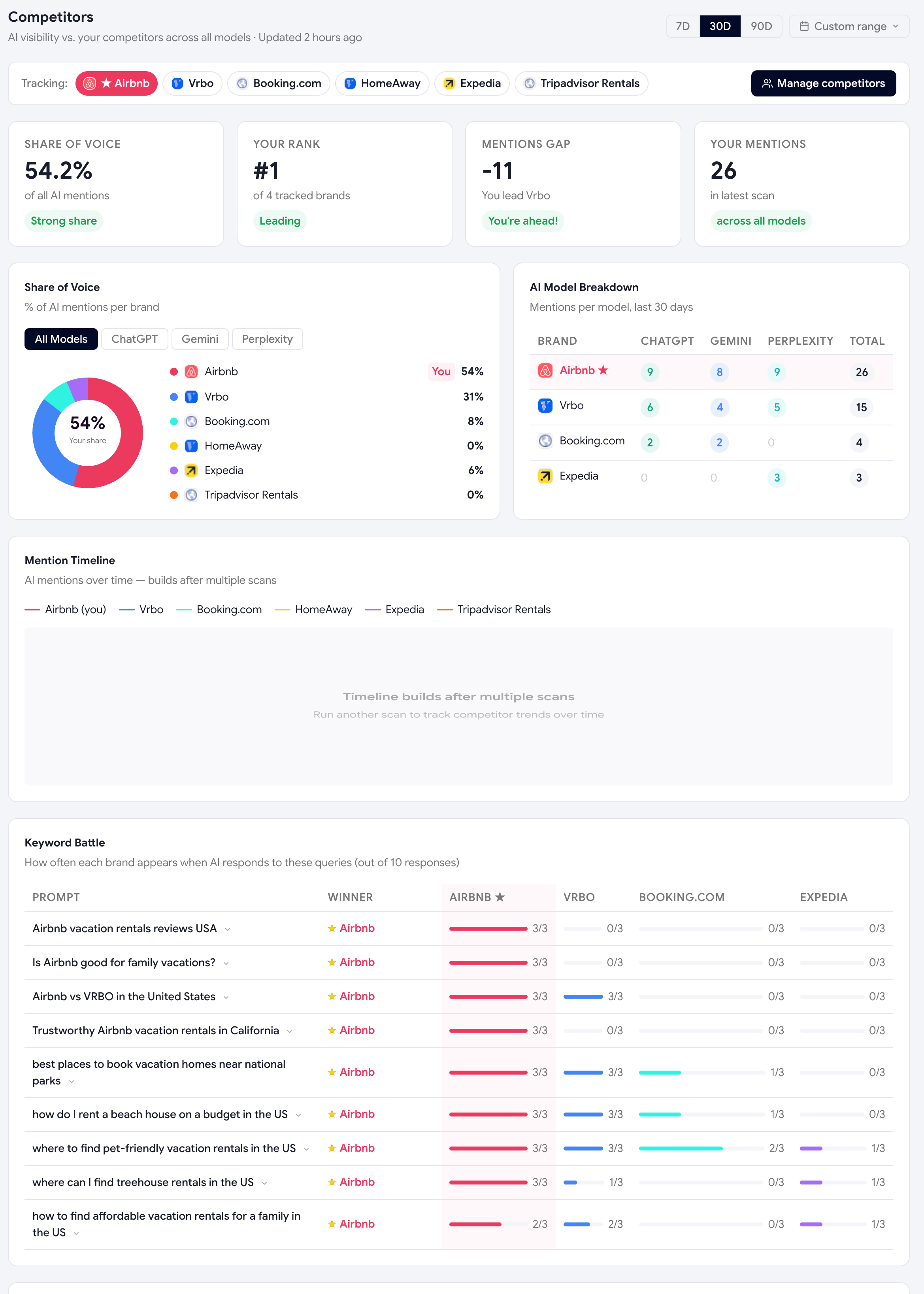
Competitors are the brands Scout tracks alongside yours on every prompt. Once added, every AI response is annotated with who appeared, who was recommended, and who beat whom — turning a raw answer into a head-to-head scoreboard.
How to add them
You can add competitors three ways:
-
During onboarding
Step 3 of the wizard asks for 1–3 competitors by name. This is the fastest path and the one we recommend for first-timers.
-
From the dashboard
Open Competitors in the sidebar and click Add competitor. Paste the brand name, optional website, and a one-line note about why they're a competitor. You can edit or remove them at any time.
-
Let Scout suggest them
On the Competitors page, click Suggest competitors. Scout uses your brand description and topic to ask the AI engines themselves: "Who are the main competitors of [your brand] in [your topic]?" and shows you a shortlist of names that came back.
Choosing the right competitors
- Pick brands a buyer would compare you against — not your favourite rival, the one your customer Googles before buying.
- Don't add 20. 3–7 is the sweet spot. More dilutes the dashboard; fewer gives you nothing to benchmark against.
- Include one "stretch" competitor — a bigger brand you aspire to beat. They show up often in AI answers, which gives you a clear ceiling to chase.
What happens after you add them
From your next scan onwards, Scout will:
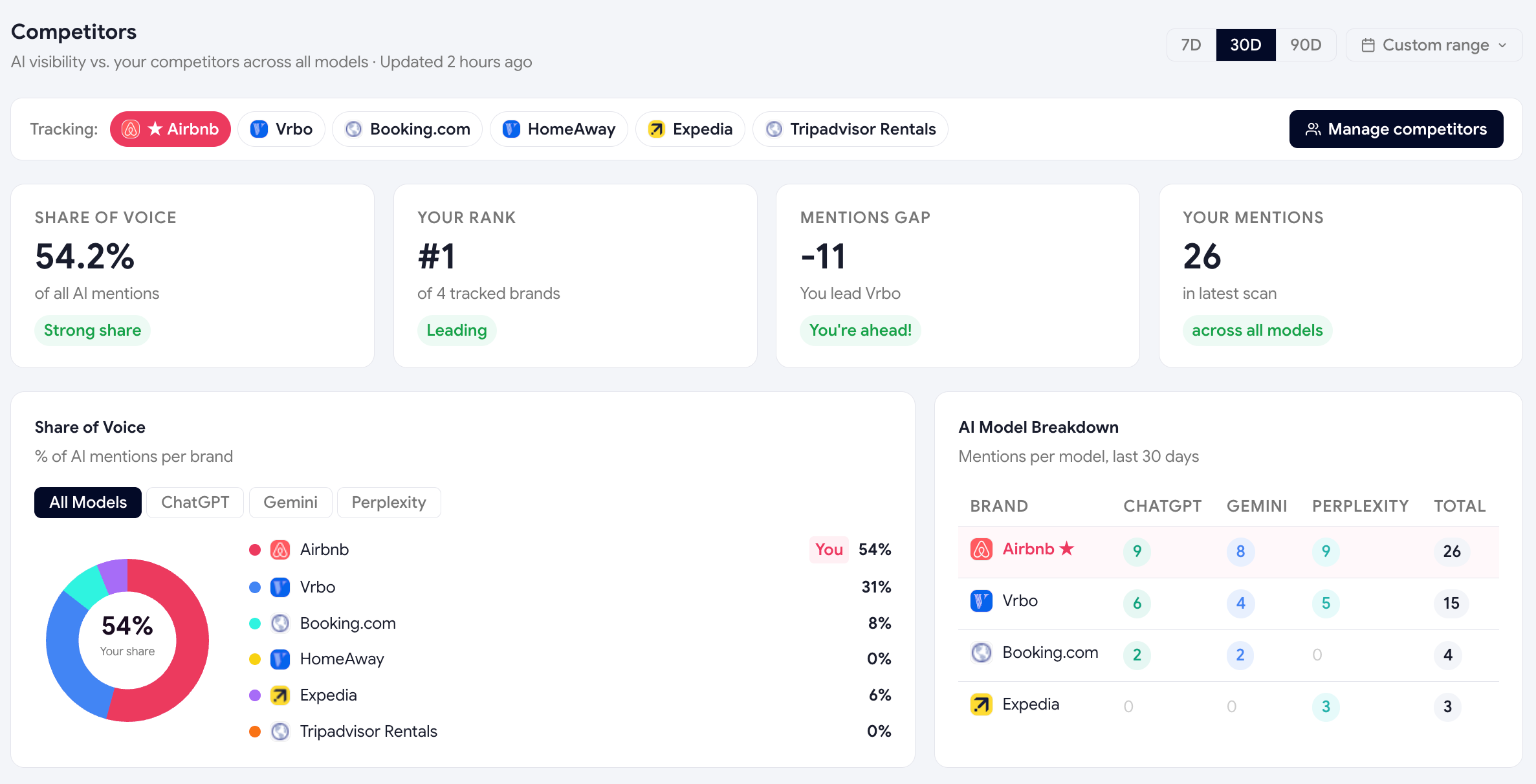
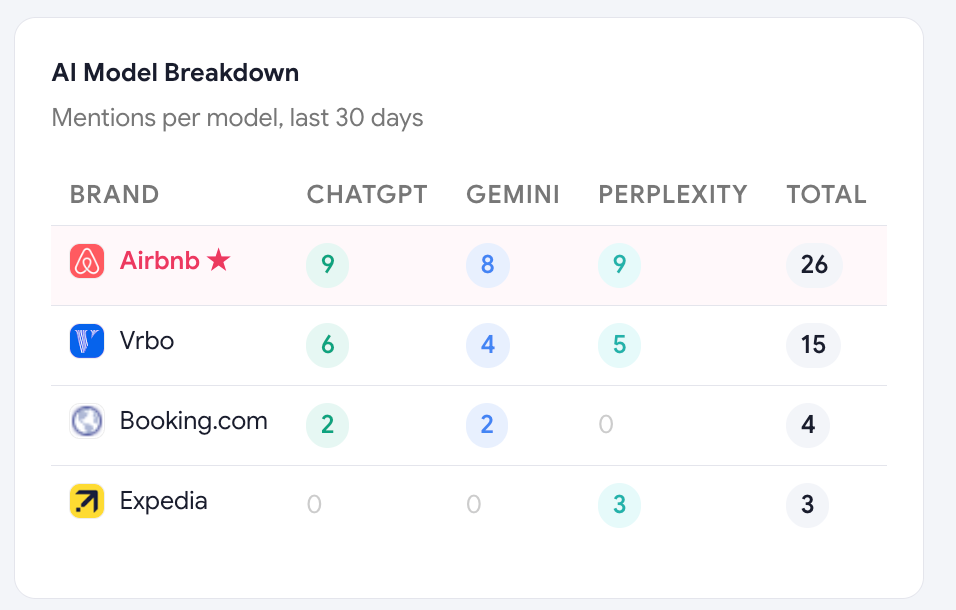
- Detect every mentionThe analysis pass scans every AI response for each competitor name and stores who appeared.
- Track recommendation wins/lossesIf an AI recommends a competitor on a prompt where you weren't mentioned, that's a loss — Scout flags it.
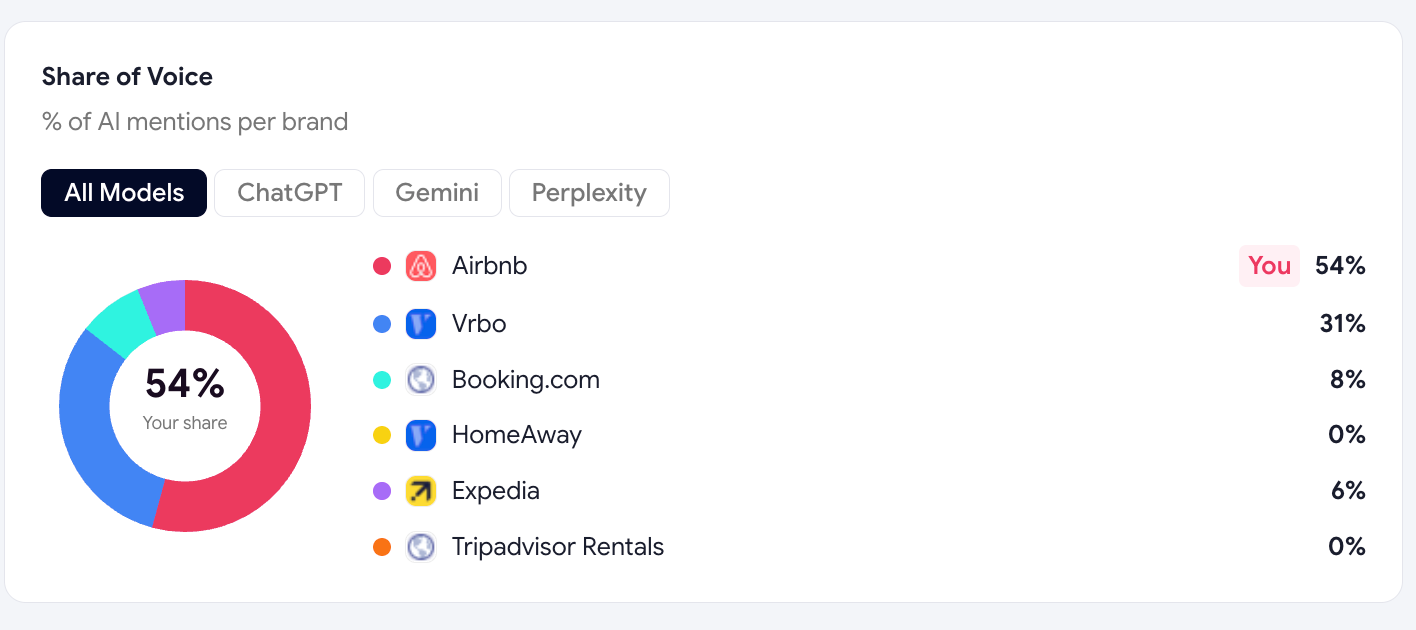
- Compute a market shareThe Competitors page shows the share-of-voice of every brand you track on the same set of prompts.
- Surface "competitor reasons"Whenever an AI explains why it recommended a competitor, Scout extracts that reason — gold dust for positioning.
This is Scout's most under-used insight. If ChatGPT keeps recommending Competitor A "for their generous free plan", you've found a positioning gap you can close. Open Dashboard → Competitors → click any competitor to see all the reasons in one place.
Was this page helpful?
Thanks for the feedback — we read every response.